
Quick Answer: How Do I Move QuickBooks Company File and Backup Data?
To move QuickBooks to new computer, create a backup of your company file on the old computer, install QuickBooks Desktop on the new system, and restore the backup. You can also use the QuickBooks Migration Tool to transfer files and settings, making the migration process faster and easier.
Key Takeaways
Create a recent backup before transferring QuickBooks.
Move both the company file (.QBW) and backup file (.QBB) whenever possible.
Install the same or a compatible QuickBooks Desktop version on the new computer.
Verify your company data after restoring the backup.
Keep the old computer until the migration is fully completed.
Why Moving the Company File Correctly Matters
Your QuickBooks company file contains everything related to your business finances, including customer information, invoices, vendor records, payroll data, bank transactions, and financial reports. If the file isn't transferred properly, you may experience missing data, damaged files, or errors when opening QuickBooks on the new computer.
Whether you're replacing an old PC or upgrading to a faster system, taking the correct steps helps ensure a smooth transition without interrupting your accounting work.
What Files Should You Transfer?
When you move QuickBooks to new computer, don't transfer only the program. Make sure these important files are included:
Company File (.QBW) – Your primary accounting data
Backup File (.QBB) – A complete backup of your company
Portable Company File (.QBM) (if available)
Payroll information
Custom templates
Memorized reports
Attached documents (if stored locally)
Having both the company file and backup gives you an extra layer of protection if something goes wrong.
Before You Move QuickBooks to New Computer
Before beginning the migration, complete these important tasks.
1. Update QuickBooks Desktop
Install the latest maintenance release available for your current QuickBooks version.
Go to:
Help > Update QuickBooks Desktop
Updating first reduces compatibility problems after migration.
2. Create a Company Backup
A fresh backup ensures you have the latest accounting records.
Steps:
Open QuickBooks Desktop.
Go to:
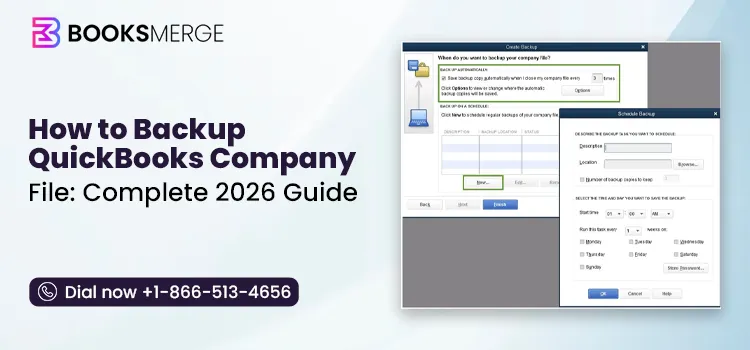
File > Back Up Company > Create Local Backup
Select a secure location.
Save the backup file (.QBB).
3. Verify Company Data
Before transferring, verify that your company file has no data issues.
Go to:
File > Utilities > Verify Data
Resolve any errors before continuing.
Method 1: Move QuickBooks Company File Using a Backup
This is the safest method for most users.
Step 1: Create a Backup
Save your backup (.QBB) to:
USB flash drive
External hard drive
Secure cloud storage
Step 2: Install QuickBooks Desktop
On the new computer:
Download or install QuickBooks Desktop.
Enter your license information.
Complete activation.
Step 3: Restore the Backup
Open QuickBooks and select:
File > Open or Restore Company
Choose:
Restore a backup copy
Browse to the backup file and complete the restoration.
Method 2: Transfer the Company File Manually
You can also transfer QuickBooks company file to new computer by copying the working file directly.
Steps:
Locate your .QBW company file.
Copy it to a USB drive or external storage.
Paste it onto the new computer.
Open QuickBooks Desktop.
Select:
File > Open or Restore Company
Browse to the copied company file.
After opening the file, confirm that all financial information appears correctly.
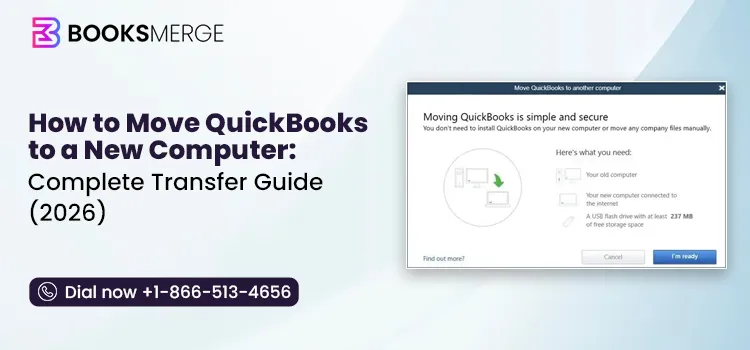
Method 3: Use QuickBooks Migration Tool
If you prefer an automated process, the QuickBooks Migration Tool can help.
It can transfer:
Company files
QuickBooks settings
Recent files
Certain application data
Basic Process
Start the migration tool on the old computer.
Create a migration password.
Install QuickBooks Desktop on the new computer.
Complete the migration using the password.
Open and verify your company file.
The migration tool is helpful for users who want to move QuickBooks Desktop to a new computer with fewer manual steps.
How to Verify Your Data After Migration
Once the transfer is complete:
Open your company file.
Review customer and vendor lists.
Check recent invoices and payments.
Verify bank account balances.
Confirm payroll information.
Open important financial reports.
Taking a few minutes to review your data helps identify any issues before you begin working.
Common Problems After Moving QuickBooks
Company File Won't Open
Possible causes include:
Incompatible QuickBooks version
Damaged file
Incorrect file location
Solution: Update QuickBooks, restore the latest backup, or verify the company file.
Missing Transactions
If transactions are missing, an older backup may have been restored.
Solution: Restore the newest backup created before migration.
License Activation Error
QuickBooks may ask for activation after installation.
Solution: Enter your product and license information and sign in with the correct Intuit account.
Payroll Data Not Available
Payroll services may need to be updated after the transfer.
Solution: Verify your payroll subscription and download the latest payroll updates.
Best Practices for a Smooth Migration
Keep multiple backups before transferring.
Don't uninstall QuickBooks from the old computer until everything is verified.
Use a reliable USB drive or external storage device.
Install the latest QuickBooks updates after migration.
Verify your company file before processing new transactions.
If you encounter problems while you move QuickBooks to new computer, you can contact +1-866-513-4656 for assistance with installation, migration, or company file restoration.
Final Thoughts
When you move QuickBooks to new computer, taking the right approach helps protect years of financial records and prevents unnecessary downtime. Creating a fresh backup, installing the correct QuickBooks Desktop version, and restoring your company file are the most reliable steps for a successful migration.
Whether you choose the QuickBooks Migration Tool or a manual backup and restore process, always verify your data before retiring your old computer.
If you need help moving QuickBooks Desktop, restoring backup files, or transferring your company file, call +1-866-513-4656 for assistance. For QuickBooks migration and installation guidance, you can also reach +1-866-513-4656.
Frequently Asked Questions (FAQs)
1. Can I move QuickBooks to new computer without losing my company file?
Yes. Create a recent backup, install QuickBooks Desktop on the new computer, and restore the backup. This is the safest way to preserve your accounting data.
2. How do I transfer QuickBooks company file to new computer?
Create a backup or copy the .QBW company file, transfer it using external storage or cloud storage, and restore or open it from QuickBooks Desktop on the new computer.
3. Can I move QuickBooks Desktop to another computer using the QuickBooks Migration Tool?
Yes. The QuickBooks Migration Tool helps transfer company files, settings, and certain QuickBooks data from one computer to another with fewer manual steps.
4. Should I move the company file or the backup file?
The recommended method is restoring the backup (.QBB), but you can also move the working company file (.QBW) if needed. Keeping both files provides additional protection.
5. What should I check after moving QuickBooks to a new computer?
Verify that your company file opens correctly, customer and vendor records are complete, reports match your previous system, and payroll information is available before deleting anything from the old computer.





Write a comment ...